


→ Türkçe anlatım için tıklayın.
Why this is needed
Game clients that use packed executables and anti-tampering protection can trigger heuristic detections in Windows Defender. These are false positives, but Defender may still quarantine or delete the files. The result is a launcher that will not open, missing files, or a client that closes on startup.
Adding the client folder to the exclusion list prevents this. It does not disable your antivirus; it only stops that one folder from being scanned.
Before you begin
Extract the client first, then add the exclusion. Excluding a folder that does not exist yet has no effect.
If you have not downloaded the client, start here: 110cap.seasro.com/links
Steps
If Defender deleted files before you added the exclusion, the client will not run even after the exclusion is in place. Add the exclusion first, then restore the client:
If you use Avast, AVG, Kaspersky, Bitdefender, ESET or similar software, add the same folder to that program's exclusion list as well. Windows Defender exclusions do not apply to other antivirus products.
Note: This procedure does not disable Windows Defender. It only excludes the folder you selected from scanning. Keep your antivirus enabled at all times.
SeaSRO Client için Windows Defender Klasör Dışlaması
Neden gerekli
Paketlenmiş çalıştırılabilir dosya ve müdahale koruması kullanan oyun clientları, Windows Defender'ın sezgisel taramasında tehdit olarak işaretlenebilir. Bunlar hatalı tespittir, ancak Defender dosyaları yine de karantinaya alabilir veya silebilir. Sonuç açılmayan bir launcher, eksik dosyalar ya da başlangıçta kapanan bir client olur.
Client klasörünü dışlama listesine eklemek bunu önler. Bu işlem antivirüsü kapatmaz; yalnızca o klasörün taranmasını durdurur.
Başlamadan önce
Önce clientı çıkarın, dışlamayı sonra ekleyin. Henüz var olmayan bir klasörü dışlamanın etkisi olmaz.
Clientı indirmediyseniz buradan başlayın: 110cap.seasro.com/links
Adımlar
Defender dışlamayı eklemeden önce dosyaları sildiyse, dışlamayı ekleseniz bile client çalışmaz. Önce dışlamayı ekleyin, sonra clientı geri getirin:
Avast, AVG, Kaspersky, Bitdefender, ESET veya benzeri bir yazılım kullanıyorsanız aynı klasörü o programın dışlama listesine de ekleyin. Windows Defender dışlamaları diğer antivirüs ürünlerini kapsamaz.
Not: Bu işlem Windows Defender'ı kapatmaz. Yalnızca seçtiğiniz klasörü tarama dışında bırakır. Antivirüsünüz her zaman açık kalmalıdır.
Windows Defender Folder Exclusion for the SeaSRO ClientWhy this is needed
Game clients that use packed executables and anti-tampering protection can trigger heuristic detections in Windows Defender. These are false positives, but Defender may still quarantine or delete the files. The result is a launcher that will not open, missing files, or a client that closes on startup.
Adding the client folder to the exclusion list prevents this. It does not disable your antivirus; it only stops that one folder from being scanned.
Before you begin
Extract the client first, then add the exclusion. Excluding a folder that does not exist yet has no effect.
If you have not downloaded the client, start here: 110cap.seasro.com/links
Steps
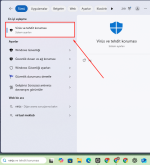
- Open Virus & threat protection
Type Virus & threat protection in the Windows search bar and open it.
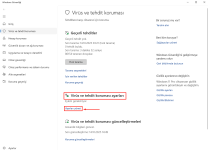
- Open Manage settings
Under Virus & threat protection settings, click Manage settings.
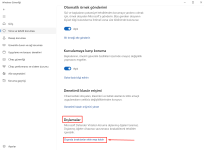
- Go to Exclusions
Scroll to the bottom of the page, find the Exclusions section and click Add or remove exclusions.
- Add an exclusion
Click + Add an exclusion.
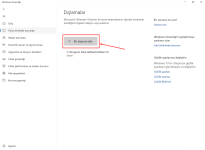
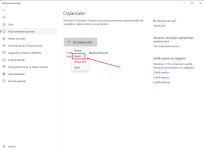
- Choose Folder
Select Folder from the list. Do not choose File or Process.
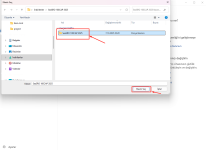
- Select the client folder and confirm
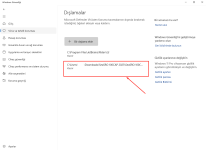
Select the folder you extracted the client into, for example C:\SeaSRO, and confirm.
If Defender deleted files before you added the exclusion, the client will not run even after the exclusion is in place. Add the exclusion first, then restore the client:
- Open Virus & threat protection and click Protection history. If the files are listed there, restore them.
- If they cannot be restored, extract the archive again into the excluded folder.
If you use Avast, AVG, Kaspersky, Bitdefender, ESET or similar software, add the same folder to that program's exclusion list as well. Windows Defender exclusions do not apply to other antivirus products.
Note: This procedure does not disable Windows Defender. It only excludes the folder you selected from scanning. Keep your antivirus enabled at all times.
SeaSRO Client için Windows Defender Klasör Dışlaması
Neden gerekli
Paketlenmiş çalıştırılabilir dosya ve müdahale koruması kullanan oyun clientları, Windows Defender'ın sezgisel taramasında tehdit olarak işaretlenebilir. Bunlar hatalı tespittir, ancak Defender dosyaları yine de karantinaya alabilir veya silebilir. Sonuç açılmayan bir launcher, eksik dosyalar ya da başlangıçta kapanan bir client olur.
Client klasörünü dışlama listesine eklemek bunu önler. Bu işlem antivirüsü kapatmaz; yalnızca o klasörün taranmasını durdurur.
Başlamadan önce
Önce clientı çıkarın, dışlamayı sonra ekleyin. Henüz var olmayan bir klasörü dışlamanın etkisi olmaz.
Clientı indirmediyseniz buradan başlayın: 110cap.seasro.com/links
Adımlar
- Virüs ve tehdit korumasını açın
Windows arama çubuğuna Virüs ve tehdit koruması yazıp açın.
- Ayarları yönet bölümüne girin
Virüs ve tehdit koruması ayarları başlığı altında Ayarları yönet seçeneğine tıklayın.
- Dışlamalar bölümüne gidin
Sayfanın en altına inin, Dışlamalar başlığını bulun ve Dışarıda bırakılanları ekle veya kaldır bağlantısına tıklayın.
- Yeni dışlama ekleyin
+ Bir dışlama ekle düğmesine basın.
- Klasör seçeneğini seçin
Açılan listeden Klasör seçeneğini seçin. Dosya veya İşlem seçmeyin.
- Client klasörünü seçip onaylayın
Clientı çıkardığınız klasörü seçin, örneğin C:\SeaSRO, ve işlemi onaylayın.
Defender dışlamayı eklemeden önce dosyaları sildiyse, dışlamayı ekleseniz bile client çalışmaz. Önce dışlamayı ekleyin, sonra clientı geri getirin:
- Virüs ve tehdit koruması ekranında Koruma geçmişi bölümünü açın. Dosyalar orada listeleniyorsa geri yükleyin.
- Geri yüklenemiyorsa arşivi dışlanan klasöre yeniden çıkarın.
Avast, AVG, Kaspersky, Bitdefender, ESET veya benzeri bir yazılım kullanıyorsanız aynı klasörü o programın dışlama listesine de ekleyin. Windows Defender dışlamaları diğer antivirüs ürünlerini kapsamaz.
Not: Bu işlem Windows Defender'ı kapatmaz. Yalnızca seçtiğiniz klasörü tarama dışında bırakır. Antivirüsünüz her zaman açık kalmalıdır.
Sorun devam ediyorsa: SeaSRO Support & Help Desk
Last edited by a moderator: